Signing in and passwords
Who can do this: every user (viewer, operator, organization administrator).
Sign in
- Open Pulse in your browser. The production address is
https://pulse.labmonitors.com; if you were given a different address, use that one. - Enter your Email and Password. Email addresses are not case-sensitive.
- Click Sign in.
You land on the dashboard. If you followed a link to a specific Pulse page before signing in, you land on that page instead (see Returning to the page you came from).
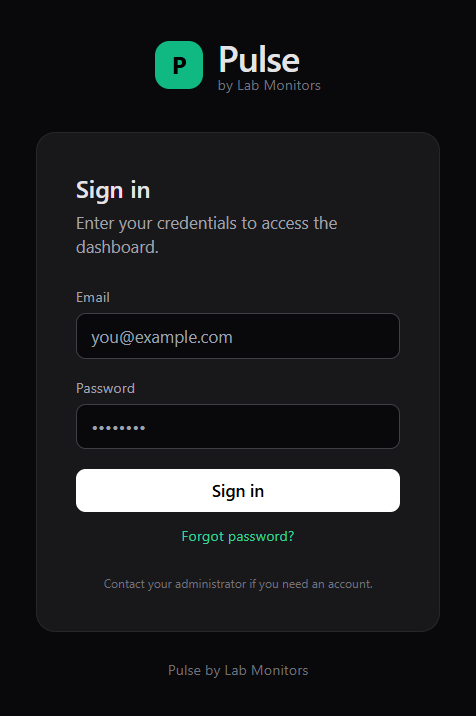
The Sign in form with Email, Password, Sign in and the Forgot password? link.
Messages you may see on the sign-in page:
| Message | Meaning and what to do |
|---|---|
| "Password set successfully. You can now sign in." | Shown after you set a password from an activation or reset link. Sign in normally. |
| "Incorrect email or password" | The address or password is wrong, or the account has not set a password yet. Check both, or use Forgot password?. |
| "Account is inactive" | Your account has been deactivated. Contact your organization administrator. |
| "Too many attempts. Try again in Ns." | You have made repeated failed attempts. Wait the number of seconds shown; see Repeated failed attempts. |
The footer of the page reads "Contact your administrator if you need an account." Pulse has no self-service sign-up; see Activating your account.
Password rules
- A password must be at least 12 characters long.
- There are no other requirements: no required mix of letters, digits or symbols, no maximum length, and no check against previous passwords.
- The same rule applies everywhere a password is set: the activation link, the reset link, the New Password field in your profile, and passwords set by an administrator.
- A password that does not meet the rule is refused with "Password must be at least 12 characters."
Tip
A long phrase of several unrelated words is easier to remember and stronger than a short password with symbols.
Repeated failed attempts
Pulse slows down repeated failed sign-ins for the same email address from the same network connection.
- The first five consecutive failures are answered with "Incorrect email or password".
- After the fifth consecutive failure, Pulse imposes a wait before the next attempt: 2 seconds, then 4, 8, 16 and so on, doubling with each further failure up to a maximum of 5 minutes (300 seconds).
- During the wait, any attempt is refused with "Too many attempts. Try again in Ns." Attempts made during the wait do not extend it.
- A successful sign-in clears the counter.
Accounts are never locked permanently by failed attempts. If you are locked out for longer than expected, wait five minutes and try once; if you have forgotten the password, use Forgot password? instead of guessing.
Reset a forgotten password
- On the sign-in page, click Forgot password?.
- On the Reset your password page, enter your email address and click Send reset link.
- Pulse shows the Check your email page: "If an account exists for that email address, we have sent a password reset link. The link will expire in 30 minutes." This page is shown whether or not the address matches an account, so it does not confirm that an account exists.
- Open the email Reset your Pulse password from pulse@labmonitors.com and click Reset password.
- Set your new password as described in Set your password.
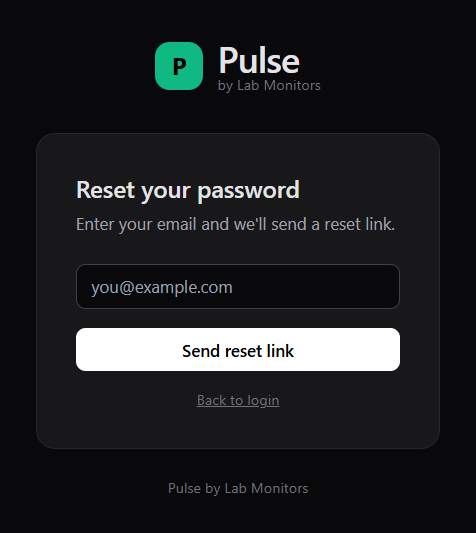
The Reset your password form.
Things to know about reset links:
- A reset link expires 30 minutes after you request it and works exactly once.
- Only the newest link works. If you request a second link, any earlier unused link stops working.
- Setting a new password from a reset link signs you out of every other device (see below).
- The reset flow also works for an account that has never set a password, so you can use it if your activation link has expired.
Requests are rate-limited per email address and network connection. You can request three links in quick succession; after the third, Pulse pauses that address for 1 minute. Each further request during a pause still shows the Check your email page but sends nothing, and doubles the pause (2 minutes, 4 minutes, and so on) up to a maximum of 15 minutes. If you have requested a link several times and nothing arrives, check your spam folder, wait 15 minutes, then request once more.
How long you stay signed in
- A session lasts 8 hours from the moment you sign in, whether or not you are active. After that, the next page you open sends you back to the sign-in page.
- Closing the browser does not end the session. Use Logout on a shared computer.
- API tokens have the same 8-hour lifetime; see API authentication.
Sign out
Click Logout at the top right of any page. Signing out ends your session on every device and browser where you are signed in, and invalidates any API tokens issued for your account. Sign in again on each device you still want to use.
Changing your password and other devices
Whenever your password changes, every existing session for your account is ended:
- when you set a new password in your profile;
- when you set a password from an activation or reset link;
- when an administrator sets a password for you.
This includes the browser you are using when you change it yourself: the next page you open after saving a new password in your profile returns you to the sign-in page. Sign in again with the new password.
Returning to the page you came from
Some Pulse emails contain links straight to a page, for example the Acknowledge this alert link in an alarm email, which opens the service page. If you open such a link while signed out, Pulse shows the sign-in page and, after you sign in, continues to the page you asked for.
This only works for pages inside Pulse itself. A link that points anywhere outside Pulse is ignored and you land on the dashboard. If your session has expired while you were working, signing in again also takes you to the dashboard rather than the page you were on.