Alarm limits and policies
Who can do this: organization administrators. Operators and viewers see the current limits in the read-only Alarm Limits & Delays section of the service page but cannot change them.
Limits are set per service, on the service page. Open the service from the dashboard and expand Edit service name and alarm thresholds / delays. The panel contains the AI recommendation area, the notification settings, and the Policy Bands (thresholds + delays) section described here. Click Save changes at the bottom of the panel to save.
How the limits are evaluated once saved is described in How alarms work.
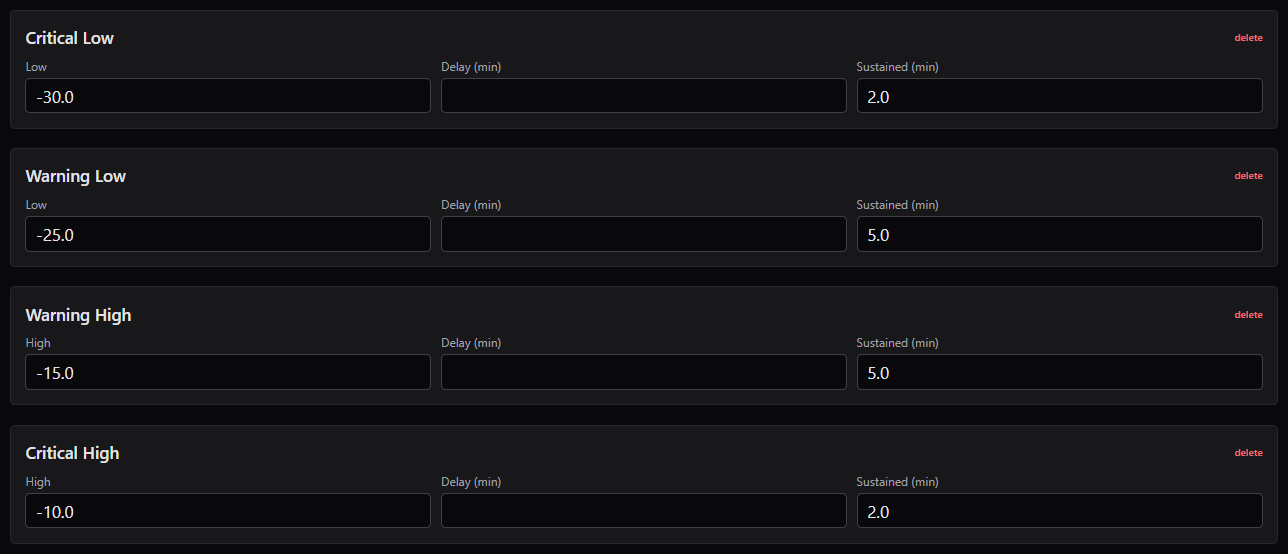
The four band boxes in the service edit panel: Critical Low, Warning Low, Warning High and Critical High.
Bands
A service's limits for a channel are a policy made of up to four bands:
| Band | Severity | Fires when the value is |
|---|---|---|
| Critical Low | CRITICAL | below its Low value |
| Warning Low | WARNING | below its Low value |
| Warning High | WARNING | above its High value |
| Critical High | CRITICAL | above its High value |
Each band box has three inputs and a delete link:
| Input | Meaning |
|---|---|
| Low / High | The limit. Leave blank to have no band on that side. |
| Delay (min) | After the service enters this band's severity, wait this many minutes before sending the notification. 0 means notify at the next check. |
| Sustained (min) | The value must be continuously beyond the limit for this many minutes before the service enters the band's severity at all. 0 means the first out-of-spec reading raises the alarm. |
Notes on how the values are treated:
- Edges are exclusive. A reading equal to the limit is in specification.
value < Loworvalue > Highis out of specification. - Sustained and delay are additive: an excursion becomes an alarm after Sustained (min), and the notification goes out Delay (min) later. A short excursion that ends before Sustained (min) is up leaves no alarm and no history entry.
- When several bands are exceeded at once, the CRITICAL band wins.
- A band with a blank limit and 0 in both minute fields is not created.
- One-sided limits are normal: a freezer might have only Warning High and Critical High.
Validation
The values must satisfy these rules, in this order. The browser shows the first failing rule in a pop-up before submitting; the server checks again and shows the message in a red banner at the top of the panel.
| Rule | Message |
|---|---|
| Critical High above Warning High | Critical high must be strictly greater than warning high |
| Critical Low below Warning Low | Critical low must be strictly less than warning low |
| Every low limit below every high limit | All low thresholds must be strictly less than all high thresholds |
| Minute fields not negative | Delay, sustained, repeat, stale-after and system-notification-delay must be 0 or more |
Rules are only checked between values that are both filled in. A submission that reaches the server without the channel selector or without all four band fields (the editor always sends all four, blank or not) is rejected with Incomplete edit submission; no changes were saved and the existing limits are left as they are.
Multi-channel services
A service with more than one mapped channel (battery excluded) shows a Channel for these bands selector above the band boxes. Choose a channel to edit that channel's own limits; the four boxes reload with that channel's current values. Choose default for the service-wide policy, which applies to any channel that has no policy of its own.
Tip
On a multi-channel service, give each measurement channel its own limits and leave default blank. The newest saved policy takes precedence, so a later save of the default policy can override a channel's own limits.
Save limits
- Expand Edit service name and alarm thresholds / delays.
- On a multi-channel service, pick the channel in Channel for these bands.
- Enter the limits, delays and sustained minutes.
- Click Save changes.
Every save creates a new version of the policy for that channel. The previous version is retired but kept, so alarm history continues to refer to the limits that were in force at the time.
What happens after a save:
- Tightening limits can put the service into WARNING or CRITICAL within about a minute, on the last known reading, with an ALARM event and, after the band's delay, a notification. Loosening limits does not clear an active alarm by itself: the alarm stays until the next reading arrives and is evaluated against the new limits.
- All acknowledgements on the service are deleted. A previously acknowledged alarm becomes unacknowledged and will be notified again. No UNACKNOWLEDGED row is written to the alarm history for this. See Acknowledging alarms.
- The notification settings in the same panel are saved too. Remember that readings are calibrated before they are compared with the limits; see Calibration.
- The save is recorded in the audit log as
service.edit.
Warning
Saving the panel for any reason, even only to rename the service or change a notification setting, versions the limits of the selected channel and removes every acknowledgement on the service.
Remove a band or clear all limits
- delete in a band box removes that band. Confirm Delete this CRITICAL_LOW band? (or the band's name). The panel shows ✓ Removed band CRITICAL_LOW (new policy version). Close/re-open the edit panel or refresh the page to see the form updated with no values for the cleared band(s).
- Clear all for this channel removes every band of the selected channel. Confirm Clear ALL bands/limits for the selected/default channel? This cannot be undone (sets to no limits configured for the channel). The panel shows ✓ Cleared all bands/limits for the channel (new policy version, none configured). Close/re-open the edit panel or refresh the page to see the form updated with no values for the cleared band(s). or, if the channel had no policy yet, ✓ Created policy entry for the channel with no limits/delays configured.
Both actions create a new policy version, delete all acknowledgements on the service, and are recorded in the audit log as service.band.delete. As with a save, an alarm that is active when you remove its band stays active until the next reading arrives. A channel with no bands never alarms on its value (it can still go STALE).
Percentage-of-setpoint limits
Controlled equipment such as a stability chamber runs at a setpoint that changes between experiments. Instead of fixed limits, you can alarm on the percentage deviation from the setpoint the controller reports.
Tick Use percentage deviation from setpoint (controlled e.g. CO₂, RH on incubators/chambers). Two selectors appear:
| Selector | Meaning |
|---|---|
| Setpoint channel (required for % logic) | The channel that carries the setpoint, for example temperature_setpoint for temperature. If you leave it at (none — fallback to <base>_setpoint naming), Pulse looks for a channel named <channel>_setpoint. |
| State channel (optional; 0 forces NORMAL) | A channel that reports whether the controller is running. When its value is 0 the service is treated as NORMAL regardless of the deviation. |
With percentage mode on, the four band values are percentages: deviation = (value − setpoint) ÷ |setpoint| × 100. For example Warning High = 5 means 5 % above the setpoint, and Critical Low = −10 means 10 % below it.
Validation differs from absolute mode. The high side and the low side are independent, so the only rules are:
| Rule | Message |
|---|---|
| Critical High deviation above Warning High deviation | For percentage mode, critical high deviation must be strictly greater than warning high deviation |
| Critical Low deviation below Warning Low deviation | For percentage mode, critical low deviation must be strictly less than warning low deviation |
Companion channels must be fresh. If the setpoint channel has no reading newer than the service's Stale after (minutes) (15 if that setting is 0), or the setpoint is 0, the channel is marked STALE with the reason "companion unavailable" while its current severity is kept. The same applies to the state channel when one is configured. A setpoint or state reading arriving re-evaluates the measured channel immediately. This freshness check always uses Stale after (minutes); it does not follow the device's uplink interval.
Map the setpoint and state channels to the same service as the measured channel so they are available in the selectors; see Which channels to map and Supported sensors and channels. AI recommendations return no proposal for services with percentage-mode limits; see When a recommendation is refused or fails.
AI recommendations
Pulse can propose limits based on the service's recent readings. The recommendation area sits at the top of the edit panel and refreshes every 20 seconds.
What is analysed
The analysis covers the service's recent readings for one channel: the first mapped channel in alphabetical order, battery excluded. On a multi-channel service the recommendation is for that channel only. The proposal contains the four bands with limits, delays and sustained minutes.
Data sent outside Pulse
Requesting a recommendation sends a summary of the service's readings to an external AI provider (OpenRouter) over an encrypted connection. Exactly the following leaves the platform:
- the service name and the description of the analysis window;
- per channel, one statistics line: device EUI, service name, channel name, number of samples, minimum, maximum, average and standard deviation;
- raw samples: up to 16 one-hour chunks of readings, chosen across weekday/weekend and business/overnight hours, each with up to 120 rows of
timestamp | device EUI | service name | channel | value.
Nothing else is sent: no organization or customer name, no user identities, no asset or location names, no current limits, no notes. The provider's response (the proposed bands and its reasoning) is stored with the service.
If your organization's policy does not allow this, do not use the recommendation button; enter limits manually instead.
Request and apply a recommendation
- Click Recommend alarm settings (AI). The area shows ✓ AI recommendation request queued successfully (service N). and then ⏳ Recommendation (window=6m, samples=8) is pending (requested <date time UTC>). with This auto-refreshes. underneath. A result normally arrives within a minute or two.
- Wait. When the result is ready the area shows AI Recommendation ready (for
<service>) with Current bands and Proposed by AI side by side, and a collapsible Reasoning / analysis. - Review the proposal. To use it, click Apply recommendation to policy_bands. Otherwise ignore it and enter values manually; the proposal is not applied automatically.
Applying:
- creates a new policy version for the analysed channel (or, if the proposal carries no channel, for the channel of the service's current policy) containing the proposed bands;
- deletes all acknowledgements on the service, exactly like a manual save; an active alarm is re-evaluated when the next reading arrives;
- keeps any existing setpoint/state channel relationships;
- is recorded in the audit log as
policy.apply_recommendation; - shows ✓ Applied N band(s) from AI rec. Refresh page or re-open edit to see in current bands / manual form. and afterwards ✓ Applied at
<date time UTC>.
A result can be applied only once; a second attempt shows No unapplied result or already applied. A result can only be applied to the service it was produced for. Adjust the applied values in the band boxes if needed and save.
When a recommendation is refused or fails
| Shown | Meaning |
|---|---|
AI Recommendation ready (for <service>) with No structured proposed_bands yet (AI tool may need prompt enhancement for JSON). See reasoning below. and, under Reasoning / analysis, AI recommendations disabled: this service uses percentage-based limits on controlled variables (setpoints change between experiments, historical data is not stationary). |
The service has a percentage-mode policy. The request is accepted and processed, but no bands are proposed; there is nothing to apply. |
⚠ Recommendation failed (request #N, window=6m, samples=8, requested <date time UTC>). with Reason: No data found for service: … |
The service has no readings in the analysis window. Wait for data and click Retry AI recommendation. |
| ⚠ Recommendation failed with another reason, or No error details were stored on the request. | Click Retry AI recommendation. If it fails again, contact Lab Monitors support. |
| A recommendation request is already pending for service N. | A request is in progress; clicking again does not queue another. |
| Insufficient permissions to request AI recommendations | Only organization administrators can request or apply recommendations. |