Your profile and notification settings
Who can do this: every user (viewer, operator, organization administrator). You can only edit your own profile.
Your profile is where you change your password, set the timezone Pulse uses to display times to you, add a phone number for SMS, and decide when Pulse is allowed to email or text you.
Open your profile
Click your name at the top right of any page (hovering shows "Edit your profile (password, notifications, schedule, timezone)"). The Your Profile panel opens below the header. It shows the organizations you belong to and your email address, then the form.
- Save Changes saves everything on the form and shows "Profile updated successfully!"
- Cancel or Close closes the panel without saving.
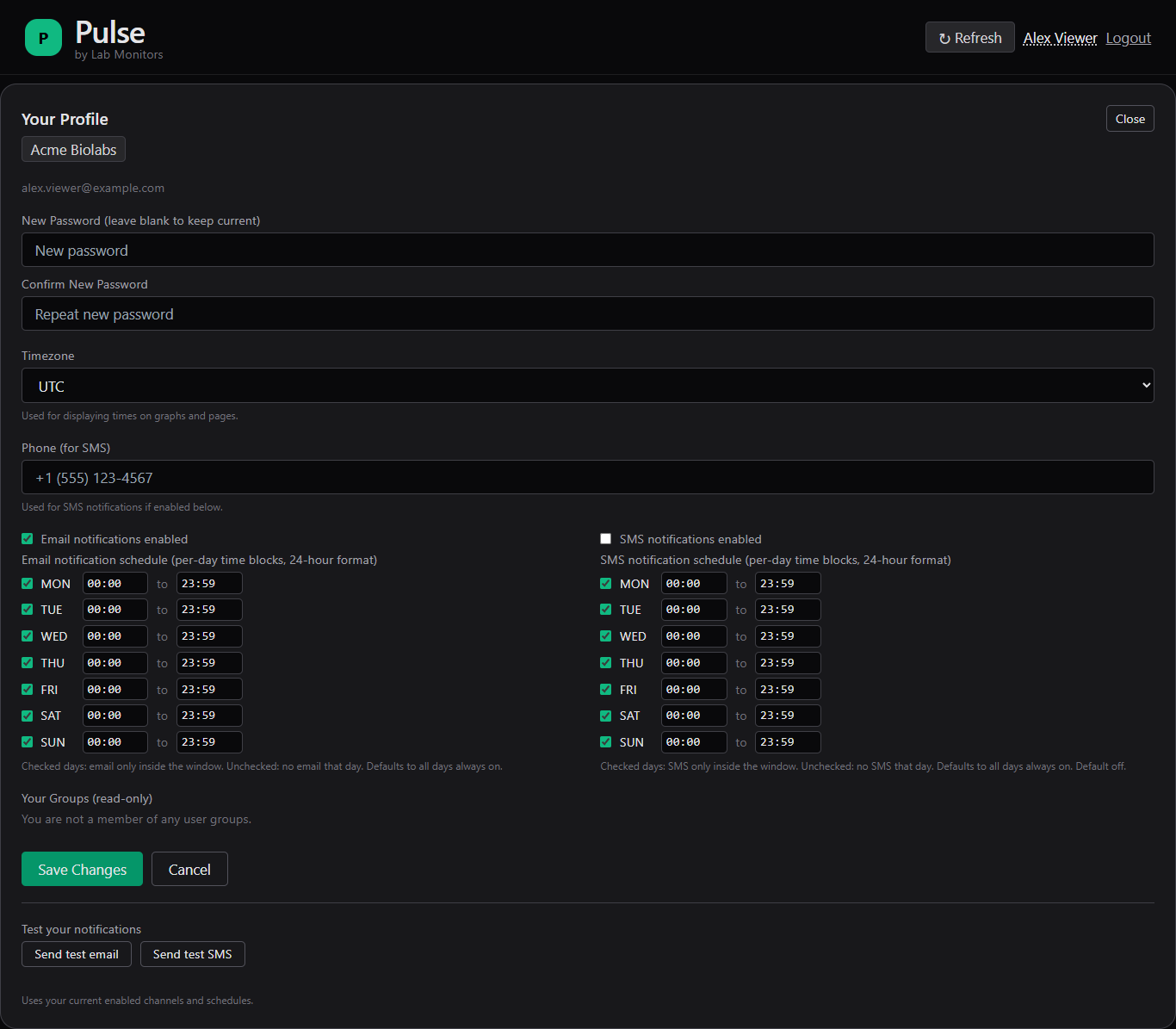
The Your Profile panel opens below the header: organization chips, email address and the form.
What you cannot change here
Your name, email address, organizations, role and group memberships are not editable in your profile. Contact your organization administrator to change your name, email address, role or groups. Contact Lab Monitors support to move an account into a different organization.
Fields
| Field | What it does | Rules |
|---|---|---|
| New Password (leave blank to keep current) | Sets a new password. Leave empty to keep your current one. | At least 12 characters. See Password rules. |
| Confirm New Password | Must repeat the new password. | Must match exactly. |
| Timezone | The timezone used for every time Pulse shows you (charts, alarm times, downtimes), for the start and end times you enter when scheduling a downtime, and for your notification schedules. Help text: "Used for displaying times on graphs and pages." | Choose from the list, grouped by region (UTC, Africa, America, Asia, Europe, and so on). |
| Phone (for SMS) | The number Pulse texts when SMS notifications are on. Help text: "Used for SMS notifications if enabled below." | Stored in international (E.164) format; see Phone number format. |
| Email notifications enabled | Master switch for email notifications. Off means no alarm emails at all, whatever the schedule says. | Default on. |
| Email notification schedule (per-day time blocks, 24-hour format) | One row per day (MON to SUN) with a checkbox, a start time and an end time. | Times as HH:MM in 24-hour format, for example 09:00 or 23:59. See How schedules work. |
| SMS notifications enabled | Master switch for SMS notifications. | Default off. Needs a phone number. |
| SMS notification schedule (per-day time blocks, 24-hour format) | Same as the email schedule, applied to SMS separately. | Same rules. |
| Your Groups (read-only) | The user groups you belong to. Shows "You are not a member of any user groups." if there are none. | Not editable here. |
Note
Pulse sends alarm notifications for a service to the members of that service's notification group. If Your Groups is empty, you receive no alarm notifications regardless of the settings on this page. See Notifications you receive.
Changing your password
- Enter the new password in New Password and again in Confirm New Password.
- Click Save Changes.
If the two fields differ, the panel is replaced by "Passwords do not match. Please try again." If the password is too short, it is replaced by "Password must be at least 12 characters." In both cases nothing on the form is saved; click your name again to reopen the panel and start over.
Warning
Saving a new password signs you out everywhere, including the browser you are using. The next page you open returns you to the sign-in page; sign in with the new password. See Changing your password and other devices.
Phone number format
Pulse stores phone numbers in E.164 format: a plus sign, the country code and the number, with no spaces or punctuation (for example +16045551234). When you save:
- everything except digits is removed, so
(604) 555-1234,604-555-1234and604 555 1234are all accepted; - a 10-digit number is treated as North American and
+1is added; - any other number is taken as already including its country code; enter it with the country code first, for example
+44 20 7946 0958or44 20 7946 0958; - a number with fewer than 7 digits is treated as blank and cleared.
The saved number is shown in the field the next time you open your profile.
How schedules work
A schedule limits when a channel may be used. The master switch (Email notifications enabled or SMS notifications enabled) decides whether it is used at all.
- Timezone. Schedule times are in the Timezone on this form. Each time you click Save Changes, the current timezone is stored with both schedules, so changing your timezone changes when your windows fall.
- Default. A new account has every day checked from
00:00to23:59on both channels, that is, always on. - Checked day. Pulse may notify you on that day only between the start and end time.
09:00to17:00covers 09:00 up to and including 17:00 exactly; a notification due at 17:01 is outside the window. - Unchecked day. Pulse sends nothing on that channel on that day. The help text under the email schedule: "Checked days: email only inside the window. Unchecked: no email that day. Defaults to all days always on." The SMS schedule carries the same text for SMS, ending "Default off."
- Overnight window. A start time later than the end time is allowed and wraps past midnight. It covers two parts of the same checked day: from the start time to midnight, and from midnight to the end time. For example, MON
22:00to06:00covers Monday 22:00 to 23:59 and Monday 00:00 to 06:00. To be reachable from Monday evening through Tuesday morning, set the same window on both MON and TUE. - Time format. The browser only accepts
HH:MMin 24-hour format (00:00to23:59). If a value somehow reaches Pulse in another form, that day is saved as00:00to23:59.
Unchecking every day does not turn a channel off
A schedule with no days checked is treated as having no restriction: Pulse notifies you at any time on that channel. To stop a channel completely, clear its enabled switch instead.
What a schedule means for the alarms you receive
Pulse checks your schedule at the moment it is about to send each notification. Nothing is queued or held for later:
- If an alarm starts while you are outside your window, you do not receive the initial notification for it.
- If the alarm is still active and unacknowledged when your window opens, you receive the next repeat notification that falls inside your window. How often repeats are sent is set per service by your organization administrator (see Alarm limits and policies).
- Other members of the notification group whose windows are open receive the alarm as normal; your schedule affects only you.
If you need to be sure of receiving every initial alarm, keep the relevant channel enabled with every day checked from 00:00 to 23:59.
Test your notifications
At the bottom of the panel, under "Test your notifications", are two buttons: Send test email and Send test SMS. Each sends a single test message to you only.
- Click Save Changes first. The test uses the settings stored on your account, not unsaved changes on the form.
- Click Send test email or Send test SMS.
- Read the result shown under the buttons.
| Result | Meaning |
|---|---|
| "Test email notification queued successfully. It should arrive shortly." | The email is on its way to the address on your account. |
| "Test sms notification queued successfully. It should arrive shortly." | The text is on its way to your saved phone number. |
| "Email notifications are disabled in your profile." | Email notifications enabled is off. Turn it on, save, and try again. |
| "SMS not enabled or no phone number set." | SMS notifications enabled is off or Phone (for SMS) is empty. Fix, save, and try again. |
What arrives:
- Email: from pulse@labmonitors.com, subject Pulse Test Notification, body "This is a test notification from Pulse."
- SMS:
ALRT: Test Notification - This is a test notification from Pulse. View: https://pulse.labmonitors.comfollowed by a short code.
Test messages normally arrive within a couple of minutes.
Note
The page says "Uses your current enabled channels and schedules." The test checks only the two enabled switches (and that a phone number is present for SMS). It is delivered regardless of your schedule, so you can test at any time of day. A successful test confirms that Pulse can reach your address or phone; it does not confirm that you are in a notification group for any service.