Calibration
Who can do this: organization administrators.
Calibration corrects a device's readings with a linear adjustment before they are stored. Use it when a probe reads consistently high or low against a reference, or to convert a raw analog input (for example a 4–20 mA pressure transducer) into engineering units.
Where to find it
- Open Admin, then Devices.
- Click Edit on the device.
- The Calibration section loads at the bottom of the editor, under Downlinks.
The section lists one row per channel of the device that is mapped to a service. Until the device is mapped it shows No channels to calibrate yet — channels appear once this device is mapped to a service. See Map a channel to a service.
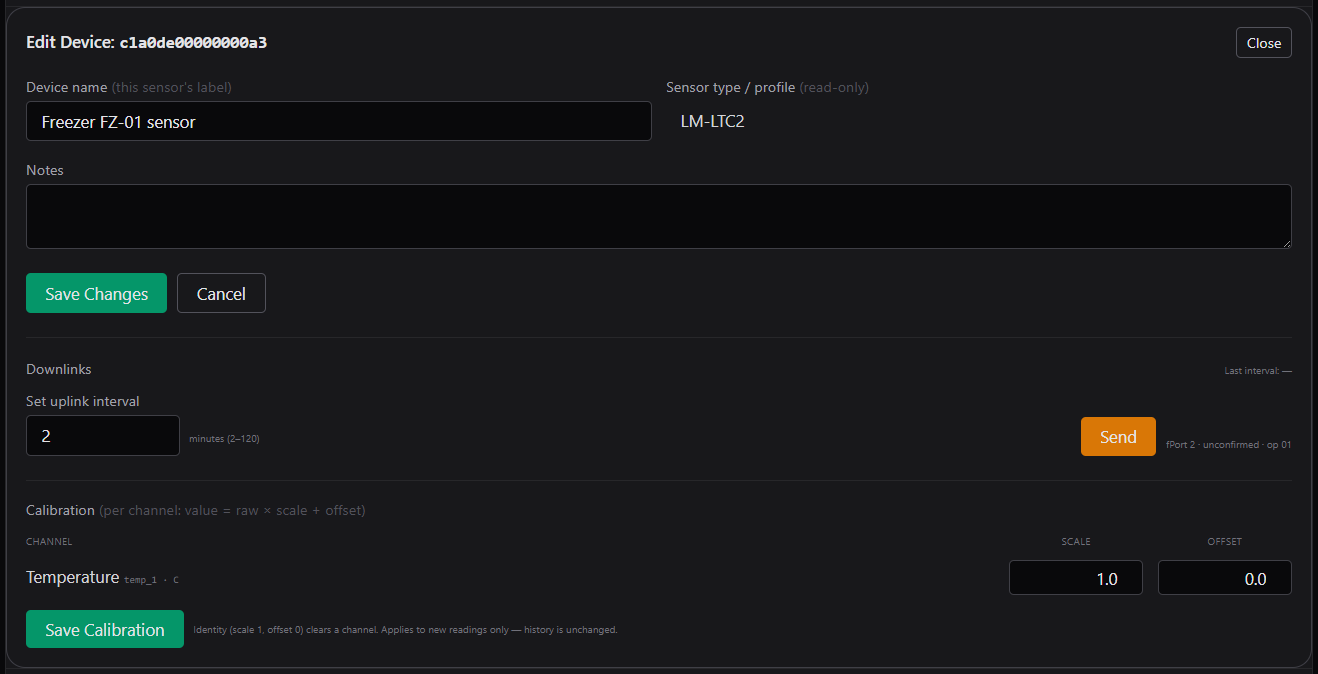
The device editor. The Calibration section lists each channel with its scale and offset.
Scale and offset
The section is headed Calibration (per channel: value = raw × scale + offset). Each row shows the channel's label, raw channel name and unit (for example Temperature / temp_1 · C), and two inputs:
| Input | Default | Meaning |
|---|---|---|
| Scale | 1 | Multiplier applied to the raw reading. |
| Offset | 0 | Value added after multiplying. |
The stored value is calculated as value = raw × scale + offset.
Examples:
- A temperature probe reads 0.4 °C high: Scale 1, Offset −0.4.
- A 4–20 mA transducer spanning 0–10 bar on a
current_mAchannel: Scale 0.625, Offset −2.5 (so 4 mA → 0 and 20 mA → 10).
Setting a row back to Scale 1 and Offset 0 removes the calibration for that channel; the form says "Identity (scale 1, offset 0) clears a channel. Applies to new readings only — history is unchanged."
Save a calibration
- Enter the Scale and Offset for each channel you want to adjust. Leave other rows at 1 and 0.
- Click Save Calibration.
The section shows Calibration saved. Applies to new readings. The change is recorded in the audit log as device.calibration.update, with the scale and offset per channel.
All rows are validated before anything is saved; one bad value rejects the whole save:
| Message | Meaning |
|---|---|
'<label>' scale/offset must be numbers. |
Enter numeric values. |
'<label>' scale cannot be 0 (it would zero out every reading). |
Use a non-zero scale. |
What calibration affects
- Future readings only. The factors are applied when each new reading is received, starting with the next batch of readings processed after you save. Readings already stored are never changed, and the chart history keeps the values as they were at the time.
- Alarms. Limits are compared against the calibrated value, so a calibration change can move a service into or out of alarm on the next reading. Check the service's limits after calibrating. The dashboard card and Active Alarms also show the calibrated value.
- The service page. Under each chart the latest reading is shown with the raw value and the factors used, for example Latest: 9.60 C (raw 10.00 · cal ×1 -0.4).
- CSV export. The export contains the calibrated
valueonly; raw values are not exported. See Exporting data. - Units. Calibration does not change the unit shown for the channel. If you convert a channel into different units, edit the mapping's unit on the Services page. See Edit a service.
- Scope. Calibration belongs to the device and channel, not to the service. If you unmap the channel and map it to another service, the calibration still applies.