Services and channel mapping
Who can do this: organization administrators. Operators and viewers see services on the dashboard and service pages but cannot create, edit or map them.
What a service is
A service is a logical monitor: one thing you watch, such as a freezer, an incubator or a room. It appears as a card on the dashboard and has its own service page, its own alarm limits and its own notification settings.
A service receives readings through mappings. A mapping links one channel of one device (for example channel temp_1 of device a1b2c3d4e5f60718) to the service. A service can have several channels from one or more devices; a channel can belong to only one service at a time.
A service appears on the dashboard only when:
- at least one channel is mapped to it, and
- it is not archived, and
- the asset it is linked to (if any) is active.
Services are managed on the Services page (Admin in the header, then Services). The page lists 15 services per page; Search by service name filters the list.
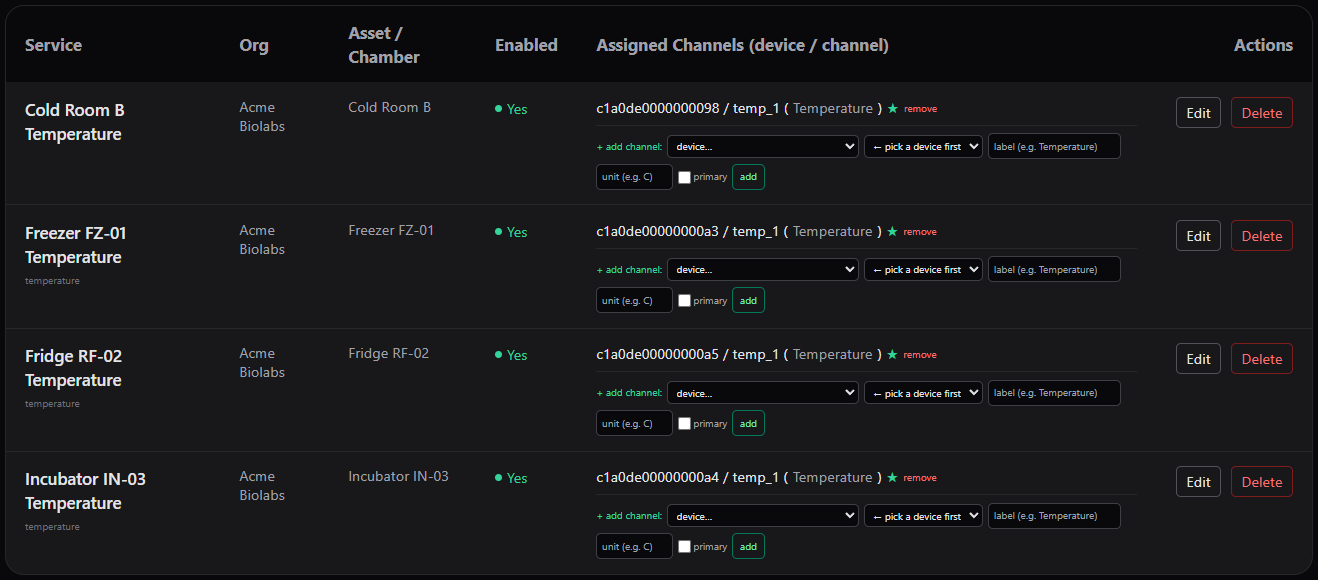
The Services table: each service shows its assigned channels and a + add channel row.
Create a service
- Open Create new service (logical target for device channels) at the top of the Services page.
- Fill in the form.
- Click Create Service.
| Field | Meaning | Validation |
|---|---|---|
| Organization | The organization that owns the service. | Required. |
| Name * | The name shown on the dashboard, for example -80 Freezer. |
Required. Blank shows Name is required; longer than 120 characters shows Name is too long (max 120 characters). |
| Service type (optional) | Free text, for example temperature, incubator, co2. Shown under the name in the table. |
None. |
| Asset / Chamber | The physical asset this service monitors. Recommended so that location and group information appear on the card. See Assets and locations. | Optional. |
| Enabled | Ticked by default. See Enable or disable a service. | None. |
On success the page shows Service created successfully! The new service has no channels yet, so it is not on the dashboard until you map one. The creation is recorded in the audit log as service.create.
The service list
| Column | Meaning |
|---|---|
| Service | Name, with the service type underneath. |
| Org | Organization. |
| Asset / Chamber | Linked asset, or —. |
| Enabled | Yes or No. |
| Assigned Channels (device / channel) | Each mapping as device EUI / channel (label); ★ marks the primary channel. A remove link follows each mapping, and a + add channel: row is at the bottom. No channels assigned yet if the service is unmapped. |
| Actions | Edit opens the inline editor; Delete archives the service (see Archiving and restoring services). |
Map a channel to a service
Channels come from readings. A device's channel is offered for mapping only after the device has sent at least one reading containing it, and only while no other service owns it.
- In the service's row, under + add channel:, pick the device from the first list. Devices are listed as
name (EUI). The list contains every device of every organization you administer, including retired ones; only a device of the service's own organization can actually be mapped (see the errors below). - Wait for the second list to fill with the device's unassigned channels, then pick the channel.
- Optionally enter a label (the display name; blank falls back to the raw channel name) and a unit (shown next to the value, for example
Cor%). - Tick primary if this channel should be listed first on the service.
- Click add.
On success the page shows Channel added to the service. The mapping is recorded in the audit log as service.mapping.upsert. If you ticked primary, any other channel of the service loses its primary mark.
If the channel list shows (no unassigned channels for this device; remove a mapping to free one), every channel the device has ever reported is already mapped, or the device has not reported yet. If the device list is missing altogether, the page shows No devices registered yet — add a device/asset first to map its channels.; register a device first (see Devices).
Which channels to map
Map the measurement channels you want to alarm on: for example temp_1 and temp_2 on a two-probe temperature sensor, or temperature and humidity on a humidity sensor. The channels each sensor type provides are listed in Supported sensors and channels.
batterycannot be mapped: Battery channels are not managed as independent mappings (they follow the sensor channel). Battery voltage is shown automatically on the service page next to the signal readings.*_setpointand*_statechannels (controllers such as stability chambers) are companions for percentage-of-setpoint limits, not things to alarm on directly. Map them to the same service as their measurement channel only when you intend to use percentage limits; see Percentage-of-setpoint limits.
Mapping errors
| Message | Meaning |
|---|---|
| Must provide a device and channel (use the unassigned picker or device selector) | Pick both a device and a channel. |
| Channel already assigned to another service. Remove the existing mapping first to free it. | The channel belongs to another live service. |
| Device is not registered. Register it on the Devices page before mapping it to a service. | Register the device first. |
| Device is decommissioned and cannot be mapped. Reactivate it first. | Contact Lab Monitors support to reactivate the device. |
| Device belongs to a different organization than this service. A device is bound to one org (tenancy). | Devices cannot be shared across organizations. |
| Service is archived. Restore it before adding channel mappings. | See Archiving and restoring services. |
| Battery channels are not managed as independent mappings (they follow the sensor channel) | Battery is not mappable. |
Unmap a channel
- Click remove next to the mapping.
- Confirm Remove this channel from the service?
The page shows Mapping removed. and the channel is free to be mapped elsewhere. The removal is recorded in the audit log as service.mapping.remove. Use remove-then-add to swap a failed sensor for its replacement: remove the old device's channel, then add the new device's channel.
Edit a service
Click Edit in the service's row. The editor opens inline.
| Field | Meaning | Validation |
|---|---|---|
| Name * | Service name. | Name cannot be empty. |
| Service type | Free text. | None. |
| Asset / Chamber | Linked asset, or -- none --. | Must belong to the same organization; otherwise the link is cleared. |
| Enabled | See below. | None. |
Click Save Changes. The editor shows Service updated. Close to apply the changes to the list. The change is recorded in the audit log as service.update.
The Channels section of the editor lets you tune each mapped channel without unmapping it:
| Control | Meaning |
|---|---|
| ▲ / ▼ | Move the channel up or down in the display order. |
| label | Display name. |
| unit | Unit shown next to the value. |
| primary | Only one channel per service can be primary; ticking it clears the others. The primary channel is listed first. |
| save | Saves that channel's row and shows Channel updated. |
Label, unit and primary changes are recorded in the audit log as service.mapping.update. If the service is archived the editor shows Service is archived — restore it before editing channels.
The service name can also be changed from the service page, in the same form as the alarm limits (see below).
Enable or disable a service
Untick Enabled (when creating or editing) to disable a service; the Enabled column of the service list shows No. The only change in behaviour is that Pulse stops raising STALE (no data) events for the service, so no STALE notifications are sent while it is disabled. Everything else continues: the service keeps its dashboard card (which still turns STALE when readings stop), its service page still opens, new readings are still evaluated against its limits, and value alarms are still raised, notified and listed in Active Alarms. To stop alarm notifications for a service, mute it or schedule a downtime instead; see Muting and downtimes. To take a service out of monitoring entirely, archive it; see Archiving and restoring services. Re-tick Enabled to resume stale detection. Restoring an archived service also sets Enabled to Yes.
Notification settings
Each service has its own notification settings. They are edited on the service page, in the Edit service name and alarm thresholds / delays panel (organization administrators only), together with the alarm limits. Open the service from the dashboard, expand the panel, change the settings, and click Save changes.
Warning
The panel is one form. Clicking Save changes saves the notification settings and the alarm limits shown for the selected channel: it creates a new version of that channel's limits and deletes every acknowledgement on the service. Check the band values before saving. See Alarm limits and policies.
| Field | Meaning | Default | Validation |
|---|---|---|---|
| Service name | Renames the service. | — | Required. |
| Asset / Chamber (the physical fridge/chamber this service monitors) | The linked asset, read-only: "Asset linking is managed on the Assets admin page." See Assets and locations. | — | — |
| Repeat interval (minutes) | How often an active alarm is notified again while it stays active and unacknowledged. Also the interval for repeated STALE notifications. | 60 | Must be 1 or more in this panel; the field does not accept 0. Entering a non-number saves the default, 60. A stored value of 0 (settable only through the API) means no repeats at all: the alarm is notified once when it is raised and on each escalation, and stale notifications are never repeated. |
| Send critical | Send notifications for CRITICAL alarms. | on | Checkbox. |
| Send warning | Send notifications for WARNING alarms. | on | Checkbox. |
| Send acknowledgements | Notify recipients when someone acknowledges an alarm on this service. | on | Checkbox. |
| Send recoveries | Notify recipients when an alarm that was notified returns to normal. | on | Checkbox. |
| Notification group (optional user group for targeting) | The user group whose members receive this service's notifications. Currently assigned: shows the current group. Choose None to clear it. Only user groups of the service's organization are listed; see Users and groups. | None | Select. |
| Enable system notifications (STALE / device offline alerts) | Send STALE (no data) and DATA RECOVERED notifications for this service. Off by default, so a service that stops reporting is silent unless you tick this. | off | Checkbox. |
| System notification delay (minutes) | Wait this long after the service becomes stale before sending the STALE notification. Reduces noise from short gaps. | 5 | 0 or more. |
| Stale after (minutes) | How long without a reading before the service is marked STALE, used only while the device has no uplink interval sent from Pulse. Once a Set uplink interval command has been sent to the device, the service is marked STALE after twice that interval instead and this value is not used. | 15 | Must be 1 or more in this panel. Entering a non-number saves the default, 15. If a service's stored value is 0 (possible only through the API), stale detection is disabled for the service whatever the device's uplink interval. |
Values that are not numbers are silently replaced by the defaults (60, 5 and 15). Negative values are rejected with Delay, sustained, repeat, stale-after and system-notification-delay must be 0 or more, shown in a red banner at the top of the panel.
Stale after only matters until you send the device an uplink interval
Pulse marks a service STALE after twice the device's uplink interval once one has been sent from the Devices page, so lengthening the interval does not cause STALE/OK flapping. For a device still on its factory interval (Uplink (min) shows —), only Stale after (minutes) applies: set it to at least 2–3 times the longest factory interval of the devices mapped to the service, or send the interval once. See The stale threshold and Downlinks.
Saving the settings is recorded in the audit log as service.edit. Which notifications are sent, and to whom, is described in Notifications you receive.
Archive a service
Delete in the service's row archives the service. Its readings and alarm history are kept and it can be restored later. See Archiving and restoring services.