Assets and locations
Who can do this: organization administrators. You see and manage only the assets and locations of your own organizations.
A location is a room, area or zone. An asset (also called a chamber) is a physical piece of equipment such as a fridge, freezer or incubator. Assets are assigned to locations, and a service is linked to an asset so that the dashboard can show where the monitored equipment is and what it is.
Locations are managed on the Pulse Admin hub page. Assets have their own page: click Admin in the header, then the Assets tab.
Locations
The Locations / Rooms table
On the Pulse Admin page, scroll to Locations / Rooms. Locations are listed ten per page.
| Column | Meaning |
|---|---|
| Organization | The organization the location belongs to. |
| Name | Room or area name. |
| Floor/Zone | The optional floor or zone label, or "—". |
| Timezone | The timezone stored on the location (see the note under Edit a location). |
| Assets | Number of assets assigned to this location. |
| Actions | Edit opens the location editor below the table; Delete removes the location. |

The Locations / Rooms table on the Admin hub, with the number of assets in each location.
Create a location
- On the Pulse Admin page, expand Add new location / room.
- Fill in the form.
- Click Create Location. You see Location created successfully! and the new location appears in the table.
| Field | Meaning | Validation |
|---|---|---|
| Organization | The organization the location belongs to. Cannot be changed later. | Required. |
| Name (Room / Area) | Room or area name, for example "Cold Storage 3" or "Main Lab". | Required. A blank name is refused with "Location name is required". |
| Floor / Zone (optional) | Extra structure, for example "2", "Ground" or "North Wing". | None. |
| Timezone | Stored with the location. | Defaults to UTC. An unknown value is saved as UTC. |
| Address (optional) | Free text, for example "Building B, Floor 2". | None. |
| Description (optional) | Short note about the room. | None. |
Edit a location
- In the Locations / Rooms table, click Edit. The editor opens with the heading Edit Location: <name> (<organization>).
- Change Name (Room / Area), Floor / Zone (optional), Description (optional), Address (optional) or Timezone.
- Click Save Changes. You see Location updated successfully! A blank name is refused with "Name is required."
- Click Close to return to the table, or Cancel to discard unsaved field changes.
Organization is shown read-only: "Org is fixed at creation (reference data is org-scoped)."
Note
The Timezone field's help text says it is "Used for display when this location's assets/services are viewed." At present every time Pulse shows you, on every page, is displayed in your own profile timezone, not the location's. Set the location timezone for your records; it does not change what anyone sees.
Assign assets to a location
You can assign from either side. From the location editor:
- Click Edit on the location.
- Under Add Asset to Location, pick an asset and click Add. The list shows only the organization's assets that are not already in this location.
- To remove an asset, click remove next to it under Current Assets in this Location.
Assignment changes apply immediately; you do not need to click Save Changes. An asset can be in only one location, so adding it here moves it out of any location it was in before. Each change is recorded in the audit log as location.asset.add or location.asset.remove.
You can also set the Location field in the asset editor; see Edit or rename an asset.
Delete a location
- In the Locations / Rooms table, click Delete.
- Confirm "Delete this location? Any assets assigned to it will be unassigned."
The location is removed and its assets remain, with no location. Services, devices and history are not affected.
Where locations appear
Through the asset link, a service inherits its asset's location. The location name is shown on the service's dashboard card (click it to filter the dashboard to that location), in each Active Alarms row, and in the header of the service page. The dashboard search box also matches location names. See The dashboard.
Assets
The Assets page
Click the Assets tab. The page is titled Assets (Chambers) and lists 15 assets per page. Use Search by name and Search to filter; Clear removes the filter.
| Column | Meaning |
|---|---|
| Asset (Chamber) | The asset's name. |
| Linked Service + Device Channels (read-only from service) | The service linked to this asset with an unlink button, followed by the channels mapped to that service. The primary channel is marked ★. If no channel is mapped yet it says "No channels assigned yet". "—" means no service is linked. |
| Location | The asset's location, or "—". |
| Groups | Asset groups the asset belongs to, or "—". |
| Serial / Asset# | The serial number if set, otherwise the asset number, otherwise "—". |
| Active | Yes or No. See What Active means. |
| Org | The organization the asset belongs to. |
| Actions | Edit opens the editor inline under the row; delete removes the asset. |
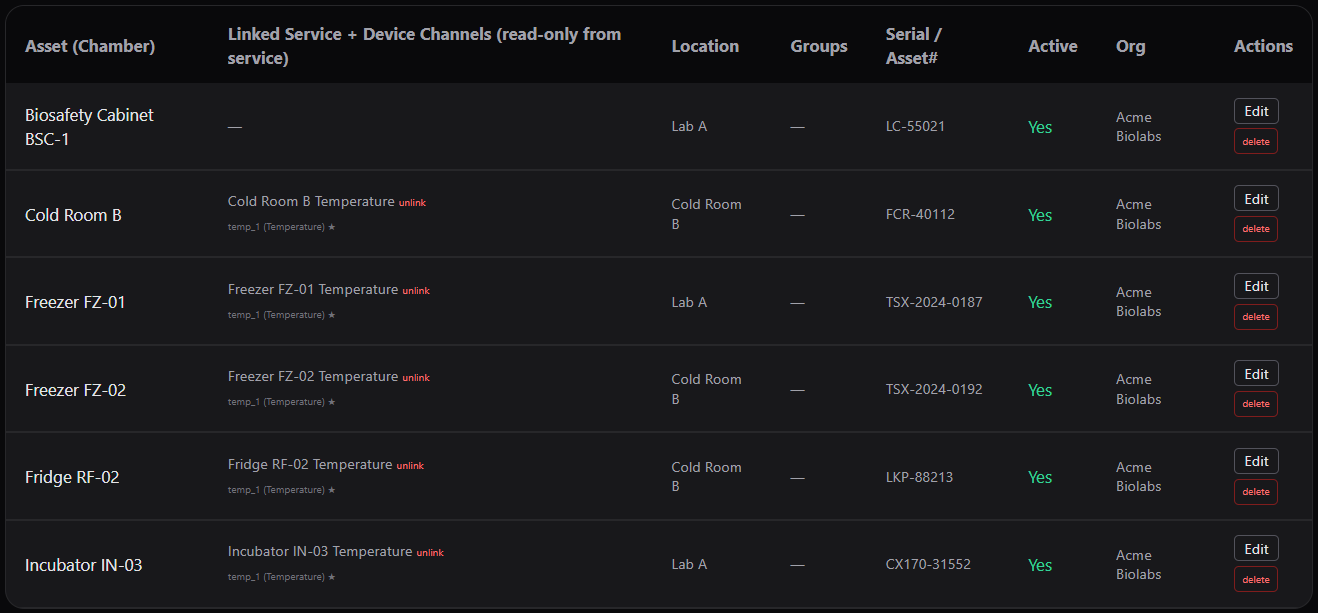
The Assets table: each row shows the linked service and its mapped channels, or a dash when the asset has no service yet.
Create an asset
- On the Assets page, expand Create new asset / device.
- Fill in the form.
- Click Create Asset. You see Asset created successfully!
| Field | Meaning | Validation |
|---|---|---|
| Organization | The organization the asset belongs to. Cannot be changed later. | Required. |
| Name | Display name, for example "Incubator Sensor A". | Required. Leading and trailing spaces are removed. A blank name is refused with "Name is required". More than 120 characters is refused with "Name is too long (max 120 characters)". |
| Active | Whether the asset's services are shown on the dashboard. | Ticked by default. |
Manufacturer, model, serial number and the other details are entered afterwards in the editor.
Edit or rename an asset
- On the Assets page, click Edit on the asset's row. The editor opens under the row with the heading Edit Asset: <name>.
- Change the fields. To rename the asset, change Name.
- Click Save Changes. You see Asset updated. Close to apply the changes to the list. The change is recorded in the audit log as
asset.update. - Click Close. The page reloads and the table shows your changes.
| Field | Meaning | Validation |
|---|---|---|
| Name | Display name. | Required. Leading and trailing spaces are removed. |
| Active | See What Active means. | Checkbox. |
| Manufacturer, Model, Serial Number, Asset Number | Equipment details for your records. The serial or asset number is shown in the table. | Free text; blank clears the field. |
| Installed At | Installation date. | A date; an invalid date is ignored and the field is cleared. |
| Location | The location this asset is in, or -- None --. | Lists the organization's locations. |
| Notes | Free text. | None. |
| Legacy Device Info (read-only - use Devices page and Services mappings for current hardware) | Device EUI and Uplink (min) from earlier versions of Pulse. | Read-only. Current hardware is managed on the Devices page and channel mapping on the Services page. |
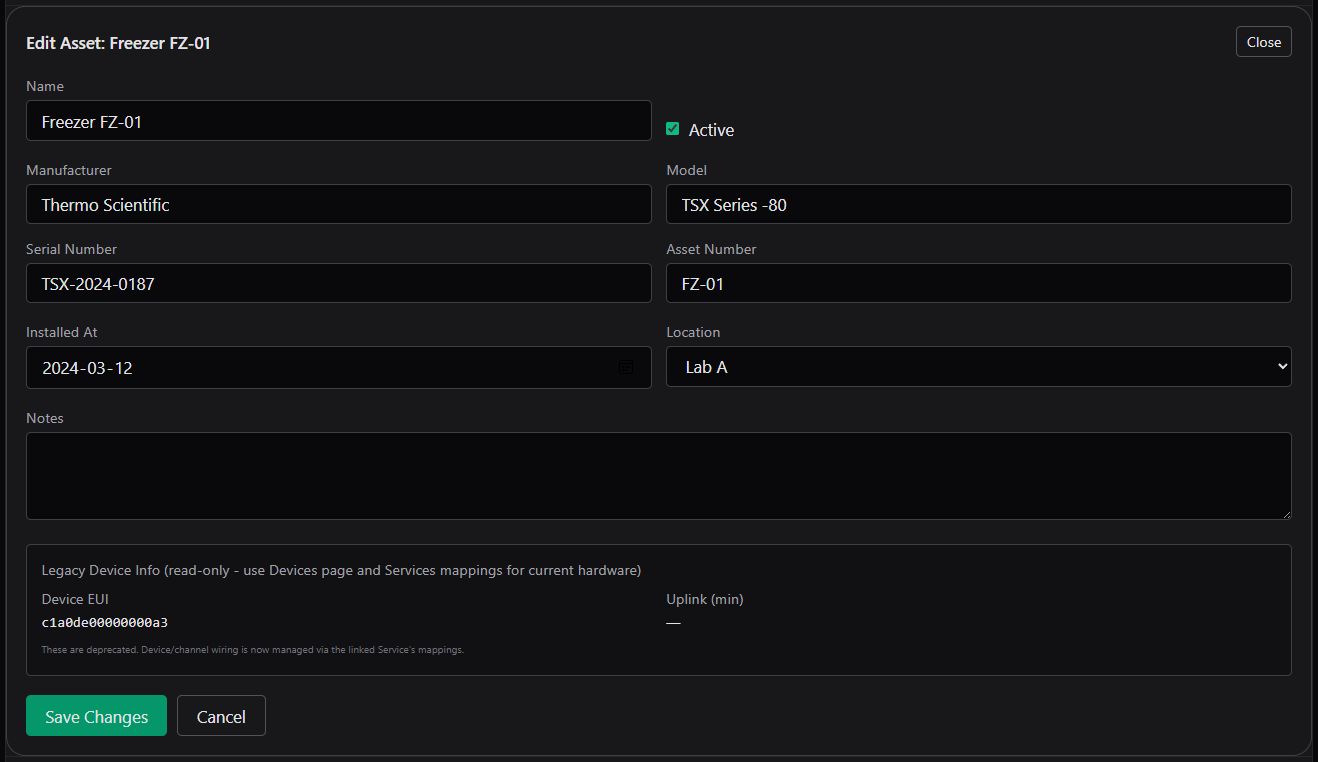
The Edit Asset editor with manufacturer, model, serial number, installed date and location filled in.
What Active means
An asset's Active flag controls visibility, not monitoring.
- Active ticked: the services linked to this asset appear on the dashboard and in service lists as normal.
- Active unticked: the services linked to this asset disappear from the dashboard cards and service lists for every user, and their service pages cannot be opened; the browser shows Service not found instead. They remain visible and editable in the Administration area. Alarms on those services still appear in the dashboard's Active Alarms list, and the CSV export of the service still works.
Making an asset inactive does not stop data collection or alarm evaluation for its services, and it does not stop notifications. To pause notifications for a service, schedule a downtime or mute it instead. See Muting and downtimes.
Link an asset to a service
A service is linked to at most one asset. The link gives the service its location and group labels on the dashboard and ties the equipment record to the monitor. It works before any device channel is mapped.
From the Assets page:
- Expand Link Asset to Service (structural mapping).
- Choose the Asset / Chamber and the Service (logical monitor for this asset). The service list contains the active (non-archived) services of your organizations.
- Click Link / Update Asset ↔ Service. You see Asset linked to service. The link is recorded in the audit log as
asset.service.link.
Choosing a service that is already linked to another asset moves it to the asset you chose.
You can also choose the Asset / Chamber when creating or editing a service on the Services page. See Services and channel mapping.
Unlink an asset from a service
- In the Linked Service + Device Channels column, click unlink next to the service name.
- Confirm "Unlink service from this asset? The service will no longer be associated with this chamber."
You see Asset unlinked from service. The service keeps its channel mappings, limits and history; it simply no longer shows this asset's location and groups. The action is recorded in the audit log as asset.service.unlink.
Delete an asset
- On the Assets page, click delete on the asset's row.
- Confirm "Delete asset "<name>"? This will unlink its service (mappings on the service stay until explicitly removed)."
The rule is simple: an asset cannot be deleted while an active service is linked to it. If one is, nothing is deleted and the page shows:
Asset still has N active service(s) (<service names>); remove or reassign them before deleting the asset.
Unlink the service (or link it to another asset, or archive it) and try again.
When the delete succeeds you see Asset deleted (and its channel mappings freed). and:
- the asset is removed from every asset group and from its location;
- archived services that were linked to the asset are detached from it automatically and keep their history;
- if the asset carried a legacy device EUI, any channel mappings on that EUI are removed, which frees those channels for other services.
Asset deletion is not blocked by history. Readings, alarms and audit entries belong to services and devices, not to the asset, and are kept.
Warning
Deleting an asset cannot be undone. If you only want it off the dashboard, untick Active instead.
Assets and archived services
When a service is archived it keeps its link to the asset, but the Assets page no longer shows it in the Linked Service column; the column shows "—" as if nothing were linked. Because the service is archived it does not block deleting the asset. If you later restore the service, its asset link comes back with it, unless the asset was deleted in the meantime, in which case the restored service has no asset and you must link one again. See Archiving and restoring services.
Assets and groups
Assets can be members of Asset (device) Groups. Group names appear in the Groups column of the Assets page, on dashboard cards and on service pages, and the dashboard search matches them. Membership is managed in the group editor. See Users and groups.